
How you can discover and repair 404 errors
Do you know what sucks while browsing a website?
Got a 404 page.
It doesn't matter if the URL was entered incorrectly or the page no longer exists. 404 errors can seriously damage your brand and negatively impact your SEO by making it difficult for search engines to crawl your website.
That means finding and fixing 404 errors must be a priority.
In this post, I'm going to cover everything you need to know about 404s, why they're bad for business, how to find them, and how to fix them.
What is a 404 error?
A 404 error is code that indicates that a requested page cannot be found.
When a page loads in a browser, the HTTP header contains a response status code that is normally not visible to viewers. These answers are divided into five categories:
- 100-199 are informative answers
- 200-299 are success answers
- 300-399 denote redirects
- 400-499 denote client errors
- 500-599 denote server errors
What exactly does a 404 error mean?
A 404 error (also known as an HTTP 404 or 404 code) is a very specific type of client error. This means that the page the viewer wants to reach cannot be found on the server.
Hard 404 vs. Soft 404 error
There are actually two types of 404 errors to watch out for.
While you have likely encountered a hard 404 query while browsing a website, it is unlikely to see a soft 404 error unless you are notified by Google Search Console.
A soft 404 occurs when a non-existent page on your website displays a message stating that users were not found but search engines get a status of 200 OK.
This tells Google and other search engines that there is a page at that URL. As a result, crawlers waste time crawling and scoring the URL.
Here's the thing: Google is pretty good at identifying those fake pages.
If a page is found that returns a status of 200 OK with all the attributes of a page that is supposed to return a 404 code, it will display a soft 404 error on it and notify the website owner in the Google Search Console.
What you need to know about your website 404 errors
Okay so you know what these errors are. Now you need to understand what causes 404 errors.
There can be many reasons why your site is returning 404 errors.
You get 404 errors if you've recently deleted or removed pages from your website without redirecting their URLs.
404 errors can also occur if you've restarted or transferred your domain and weren't able to redirect all of your old URLs to the new website.
Sometimes 404 errors can be the result of changing a page's URL. Changing any part of the URL, whether it is a category name or the slug of the page, will result in a 404 error.
Even typing a URL incorrectly on an internal link can result in a 404 page and a broken link.
Why are 404 errors bad for websites?
A large number of 404 errors can create huge problems for your website.
Let's start with the user's point of view. If you keep getting 404 errors while browsing your website, it will result in a terrible user experience.
Even finding a 404 error can be enough to send a visitor wrap.
Read that again: Just one 404 error can cost you a customer.
It gets worse because 404 errors can damage your ranking as well.
404 errors are not a ranking factor in themselves, and Google doesn't directly penalize you for having lots of them.
But they can damage your SEO.
The more broken links your website contains, the more difficult it will be for Google and other search engines to crawl your website. Link equity doesn't pass well on your website either.
Both can lead to a decline in the rankings.
You can also suffer from high bounce rates if users leave your website after landing on a 404 page. Unlike 404 errors, bounce rates are a ranking factor and Google can penalize your website if the bounce rate is too high.
How to find and fix 404 errors on your website
Now you know how bad 404 errors are. Let's see how we can find and fix them.
Find 404 errors
Site crawlers like Screaming Frog are a great way to find broken links that quickly lead to 404 errors. Screaming Frog is also free if your website has 500 URLs or less.
First, do a site audit.
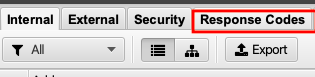
Then click Response Codes in the top menu.
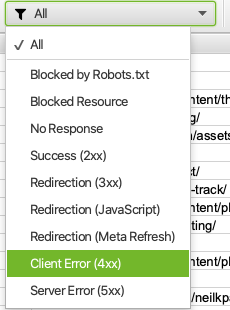
Filter on Client Error 4XX for a list of all pages that return a 404 error.
However, site crawlers won't give you a full list of 404 errors because they only display broken links.
However, you can find any 404 error in the Google Search Console.
The Google Search Console provides a list of all the 404 errors that Googlebot finds on your website. This includes both hard 404s and soft 404s.
Sign in to the search console, click Coverage and select the Excluded tab.

You will see a list of hard 404 errors marked as Not Found (404) and soft 404 errors marked as soft 404.
Click each page for a full list of pages with 404 errors.
You can also find 404 errors in Bing Webmaster Tools by clicking Reports and Data, and then clicking Crawl Information.
Finally, you can find 404 errors using my SEO tool Ubersuggest.
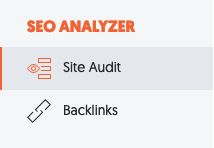
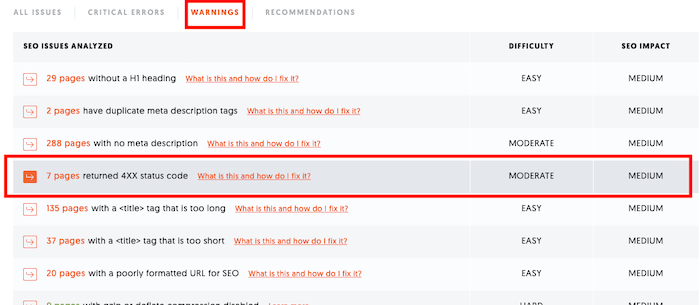
Switch to the Site Audit tab in the left sidebar.
Perform a site review, then click Critical Errors.
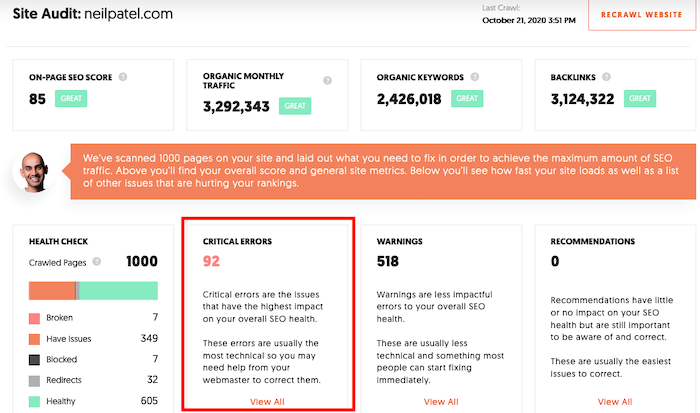
Then click the Alerts tab at the top of the page.
If pages return 404 error codes, they will be listed here. Click the problem for a full list of pages.
Fix 404 errors
Now is the time to fix any bugs you found.
Here are four ways to do this:
- Redirect the 404 error: Redirecting users to another relevant page is the easiest way to fix 404 errors on your site. Just make sure you redirect them to something relevant – don't just send them back to your homepage.
- Restore the page: If you find that there is still a lot of demand for a page you deleted and there is no suitable page to redirect users, consider reverting to the original page.
- Correct the link: If there are broken links on your website, you can simply edit the link to point to the correct url. However, you can't fix links on websites you don't control.
- Create a 404 page: By creating a custom 404 error page, you can make sure no visit is wasted – more on that below.
When you have a lot of 404 errors it is a matter of prioritizing your efforts. If you get 404 errors on larger pages, fix them first. Product pages, contact pages, and service pages with 404 errors should be fixed first.
Other pages may not be as urgent. Google Search Console can reveal 404 errors on pages that a human user can never navigate to. You may want to fix them, but these errors shouldn't affect your rankings too much.
Find and fix 404 errors on your WordPress site
If you have a WordPress site, you can follow the steps above to find 404 errors.
Found her? Great, now we can fix 404 errors in WordPress.
If you are getting errors all over the site, there is likely a problem with your permalinks. Go to “Settings → Permalinks” to update your settings.
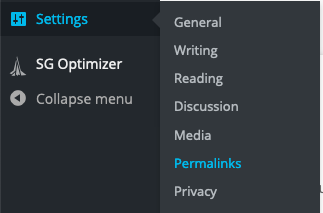
Click Save Changes at the bottom of the page when you're done.
If certain pages are returning 404 errors, you'll want to set up a 301 redirect for them. WordPress tries to do this automatically, but sometimes it doesn't work.
The easiest way to do this yourself is to purchase Yoast Premium or install the redirection plugin.
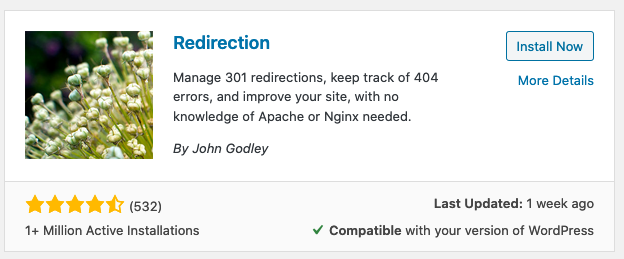
After installation and activation go to Tools → Redirection.
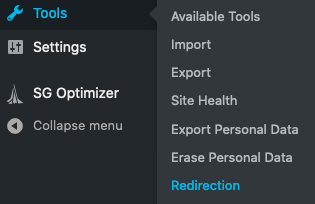
You need to answer a few quick questions to get the tool set up.
Then you can redirect any URL on your WordPress site. Just enter the URL you want to redirect in the Source URL box and the URL you want to redirect the page to in the Destination URL box.
Then click Add Forwarding.
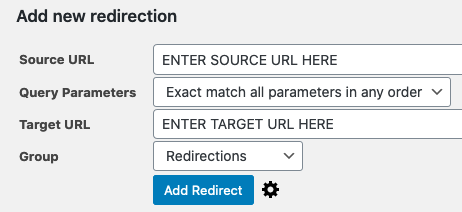
If this seems confusing or complicated, it might be best to have a website developer or your website hosting support team help you make sure all 404s are redirected properly.
How often should you check for 404 errors?
How often to check for 404 errors depends on the size of your site.
Smaller websites with fewer than 50 pages can probably check for 404 errors every month or so. Larger websites may want to check for 404 errors every week or every other day.
Other top tools to find and fix 404 errors
The above methods aren't the only ways to find and fix 404 errors. Here are some of the other leading tools you can use.
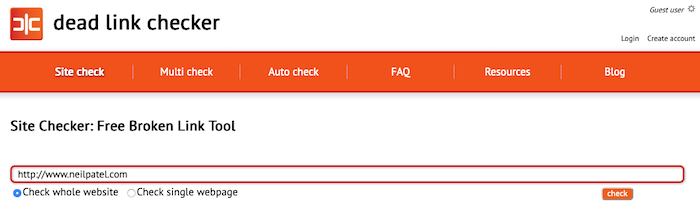
Dead Link Checker
Dead Link Checker is similar to Screaming Frog. You can use it to check up to 2000 links on your website to see if they are broken.
Google Analytics
Google Analytics doesn't track 404 errors immediately. However, you can use them to find 404 errors if you have a custom 404 page.
First, find the name of your 404 page.

Mine is page not found – Neil Patel.
Then open Google Analytics and go to Behavior → Website Content → All Pages
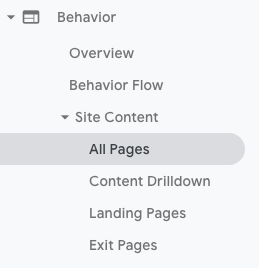
Now add the page title as a secondary dimension.
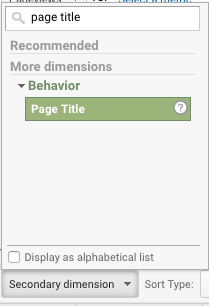
Click Advanced next to the search bar, change the rule from page to page title, and type your 404 page title in the Include box.
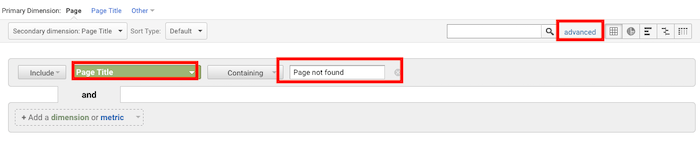
You will now get a report on how many people landed on your 404 page and where they came from.
MonsterInsights
If you have a WordPress site, MonsterInsights can do all of the hard work for you. Instead of creating a manual report in Google Analytics, just install the MonsterInsights plug-in.
As soon as you establish your Google Analytics connection, your 404 errors will be tracked automatically.

Create a unique 404 error code page
I strongly recommend creating a unique 404 error code page for your site.
Most of the standard 404 error messages are way too technical for the average user to understand, and do not help them find another relevant page.
Having a unique 404 page can add more value to your users and even help them find the information they are looking for.
You can also increase your branding and marketing efforts.
Many companies use a custom 404 error page to bolster their branding and add a little humor. Creating a custom url page also makes it easy to track 404 errors in Google Analytics.
Don't go overboard, however. A clean and straightforward 404 page is far more effective than an overly complex one.
Make sure your custom page has a 404 header status too.
If you don't, search engines won't recognize the page properly. Google keeps showing the page in search results and sends you a barrage of soft 404 error messages in the search console.
If you need inspiration, here are some of my unique 404 page examples:
Airbnb
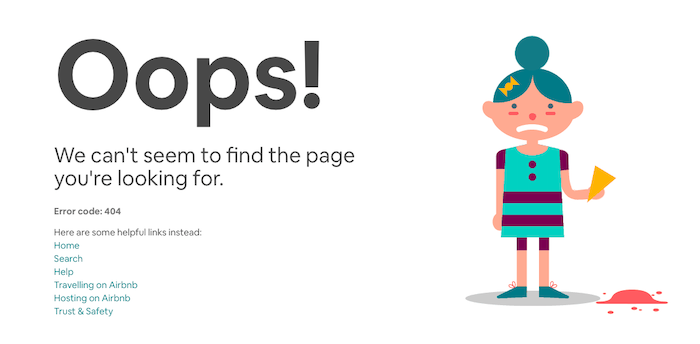
Airbnb makes the most of a 404 error by showing users a fun GIF and offering links to the main pages of their website.
southwest
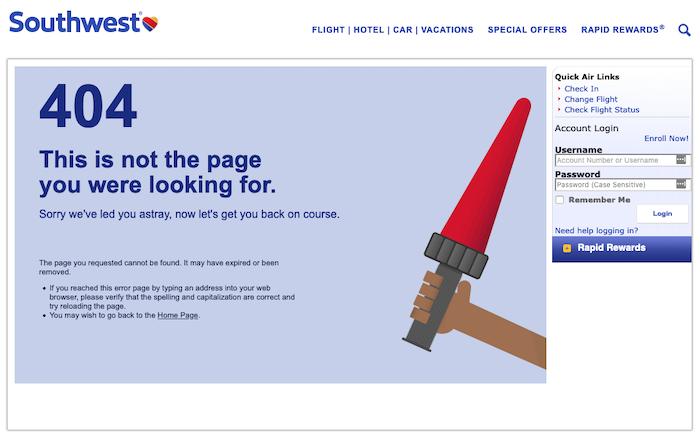
Southwest takes full responsibility for the error and explains how it could have happened if users want to try to find the page again.
Wendys

Wendys goes way beyond that with its 404 page. There are no links here to any other part of their website. Just a free game that users can play to pass the time.
Conclusion
When you have a website, 404 errors are inevitable. However, there is no reason to detract from your website's user experience and detract from your rankings.
Use the strategies and tools above to run regular checks to find 404 errors and fix them quickly. The faster you fix them, the less damage they can do.
How many 404 errors were you able to fix on your website? Let me know in the comments.