
How To Use A Net Cache Viewer: All You Want To Know
Pages on the Internet don't last forever.
Some disappear overnight without warning. Other times, servers are down or you're just curious about what your or someone else's website looked like ten years ago.
How do you access this information again?
You need a web cache viewer.
It is a tool that can be used to restore website backups or snapshots.
This guide introduces some of the best web cache viewer tools that you can use to go back in time to find missing information or even spy on your competitors.
What is a web cache viewer?
A web cache viewer allows you to view the older version or snapshot of a website called a cache page. A cached page is a snapshot of the raw HTML and contents of a page.
For example, when Google indexes your website, it takes a screenshot of its current appearance and indexes it.
There are several tools available for viewing an archived page, such as: B. Google's cache function in search results and websites like the Wayback machine for storing internet history.
When is a web cache viewer used?
A web cache viewer is a valuable tool that you should have in your back pocket. Here are a few times you might want to use this handy tool.
A website is no longer available
Need information from a page with an annoying 404 error? You can use a web cache viewer to view the last archived version before it went offline.
A page that you want to view has changed
When a website has had a major overhaul, you can use the cached version to revert the website to how it used to be. This is particularly useful for analyzing competitors. For example, if a competitor suddenly overtook your website in search results, you can view older versions of their website to see what they changed.
Improve your SEO
Not seeing the SEO results you want? Did you know that page caching can improve your website speed by reducing server load time by up to 80 percent? If you look at the cached version, you can see what Google sees as it crawls your page. Failure to cache your website can increase your page load times and dramatically affect your bounce rate.
Display one page faster
If the webpage is slow or unresponsive, you can use the cached version to view a snapshot of the website when Google last indexed the page. Although a cached page may not always have the most up-to-date information, it can save you time.
Check when Google last indexed a page
Knowing when the last time Google Bots successfully visited your page is helpful, especially if you are making changes to your website.
Viewing the cached version can help you determine if a page is not responding, how it is cached, and if you need to turn something off.
Tools and tricks for the Web Cache Viewer
While viewing cached versions sounds like an administrator's nightmare, various tools make the process simple, straightforward, and quick.
1. Use a Chrome extension
Aren't you using Chrome extensions? You're missing something.
Google's Chrome extensions are programs that you can install on your browser to change its functionality.
For example, you can add extensions that:
- Block ads from being displayed on a website you visit.
- Pin each picture on your Pinterest boards.
- View the DA from any website.
- Quickly access one of your passwords with a password manager.
The Web Cache Viewer Chrome extension makes it easy for you to view a snapshot of the page you are visiting. This is useful when you encounter a 404 error and want to revert to the older version to view the information.
Wayback Machine Vs. Google Cache in the Chrome Extension
The Web Cache Viewer Extension will:
- You can view the versions of Google Cache or Wayback Machine.
- Smartly redirect you to the archived page instead of going to the archive selection screen on the Wayback Machine website.
Which option should you use? The wayback machine or the google cache?
It depends on what result you expect from the tool.
For example, if you want to check if Google is caching your website or need to display the last cached page of a website, Google Cache is the best option for you.
However, if you want to turn back the wheels of time and sift through a website's past, then you should use the Wayback machine.
How to use the Chrome extension's web cache viewer with Wayback Machine or Google Cache
Do you have five minutes That's all you need to get the extension set up and take advantage of its caching capabilities.
Here's what you need to do:
Step 1: Install the Web Cache Viewer on your Chrome and enable the extension.
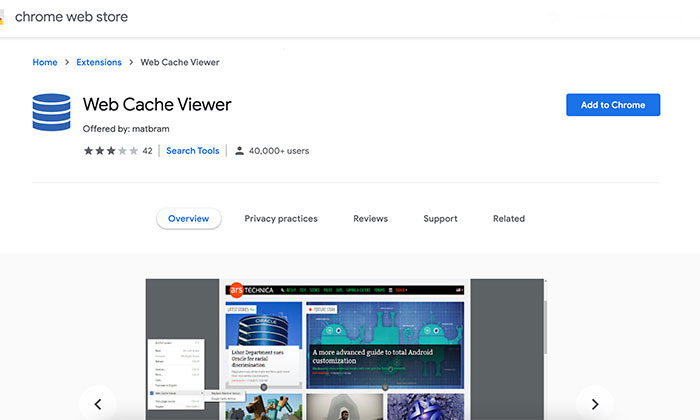
Step 2: Go to the destination url of your choice, right click on the page and scroll down to "View Cached Version".
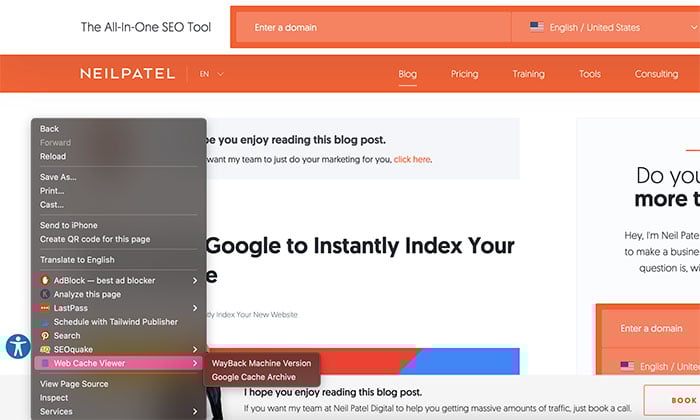
Step 3: Select either the Google Cache or Wayback Machine option.
Once selected, the extension will display the Wayback Machine URL for the page or the latest cached Google version.

2. Use google search to find cached pages
Every time Google crawls a webpage, it creates a backup that becomes part of the Google cache.
How to get a cached link using google search
Step 1: On your computer, do a Google search for the page you want to find.
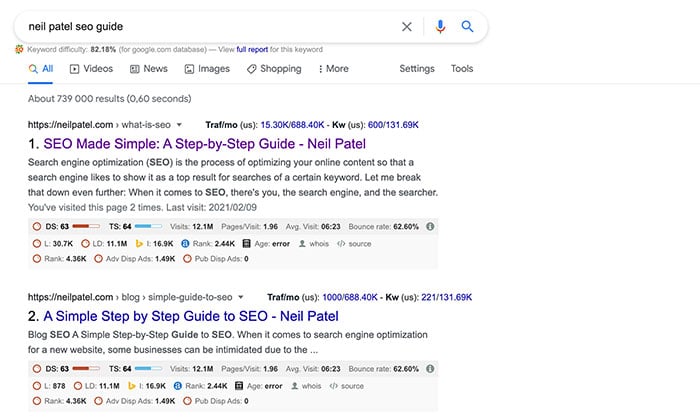
Step 2: When the search results load, click the down arrow next to the website URL and choose Cached.
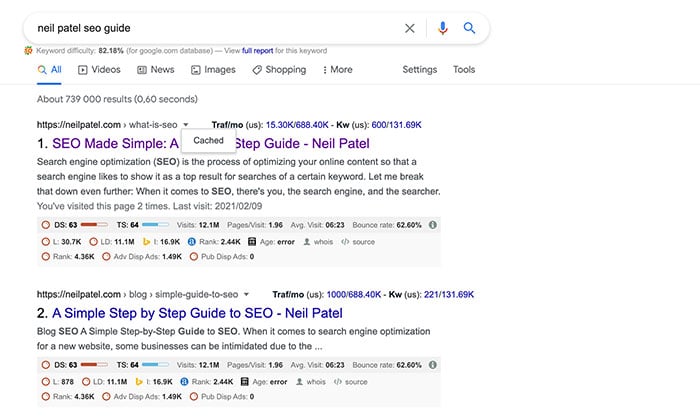
Step 3: The cached version of the page is loaded. You can choose to view the full version, plain text version, or view source.
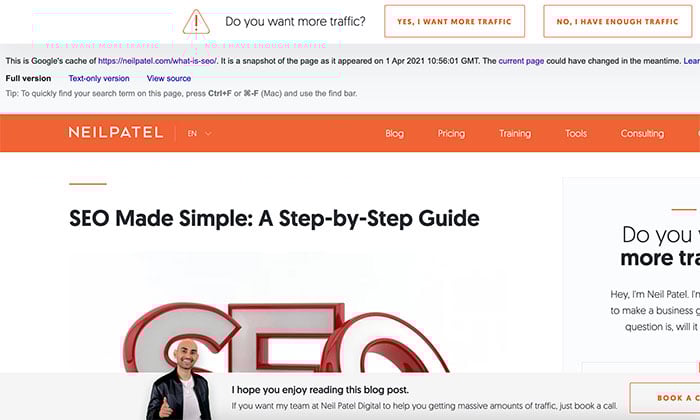
Note that you cannot navigate to other pages on the website. If you do this, you will be taken to the live version. You can also access the Live Page by clicking the Current Page link at the top of the page.
3. Use the address bar in Chrome to find cached pages
Having trouble finding the page you want using the search results? If you have the Chrome browser, you can use the address bar to get the cached version of any URL.
Here's how to get a cached link using the address bar in Chrome
Step 1: Open the Chrome browser.
Step 2: Enter "cache" in the address bar followed by the URL. Example: "Cache: https: //neilpatel.com"
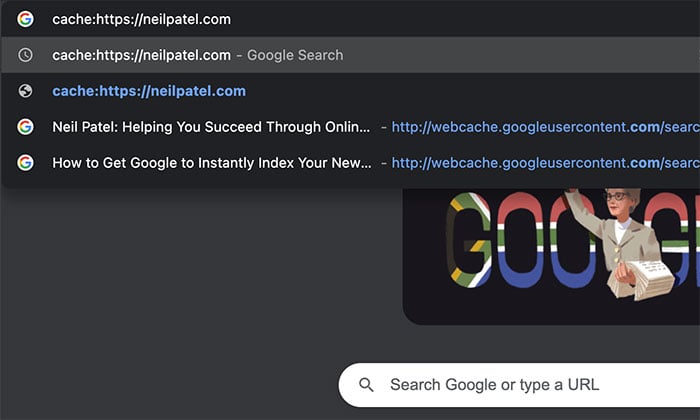
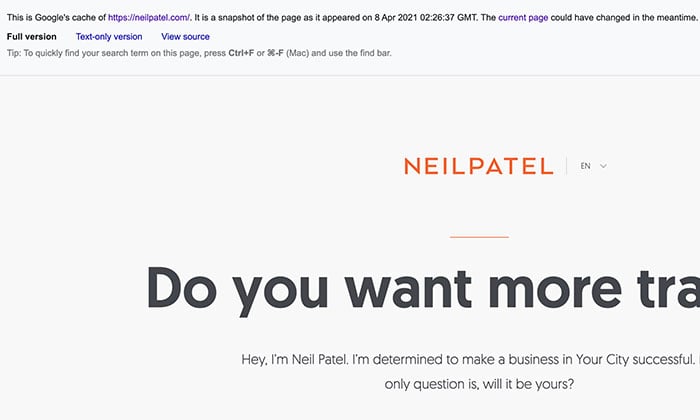
Step 3: The cached version will be loaded and you can choose from the same three version formats using the Google search method.
4. Use the Archive Today Web Cache Viewer
Wish you could go back in time? Well you can with Archive.Today.
The website is a time capsule for the Internet. It takes a snapshot of a page and saves it forever, even if the original disappears.
The site stores text and graphics and gives you a link to the immutable record of the webpage.
The only catch?
You have to submit web pages manually and can only view entries that have been previously saved.
How to get a cached page with Archive.Today
Step 1: Go to Archive.Today and scroll down to "I want to search the archive for saved snapshots."
Step 2: Enter the url you want to search for.
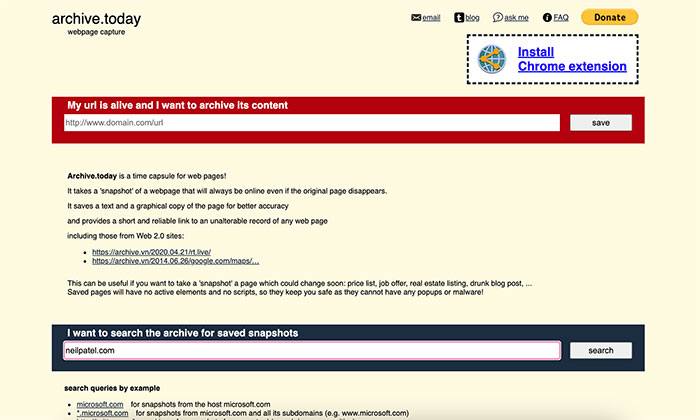
Step 3: A new page is loaded and snapshots are displayed, listed from oldest to newest. Click the one you want to view.
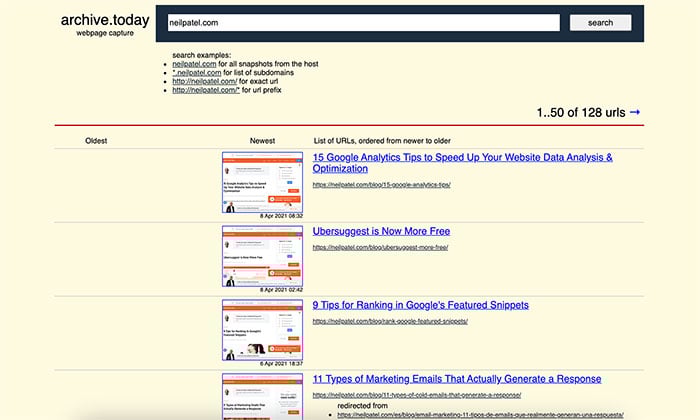
A safe, non-editable version of the page is loaded. You will have the option to download the zip file, share the link, and view the webpage or screenshot.

5. Use the Wayback Machine Desktop Web Cache Viewer
The internet archive runs the wayback machine. It is a non-profit organization that is building a digital library on the history of the Internet.
You can search over 553 billion cached web pages, and the website contains an archive of text, video, audio, software, and images.
How to view a cached page with the wayback machine
Step 1: Go to Archive.org and enter the url or keyword you want to view into Wayback Machine's search bar.
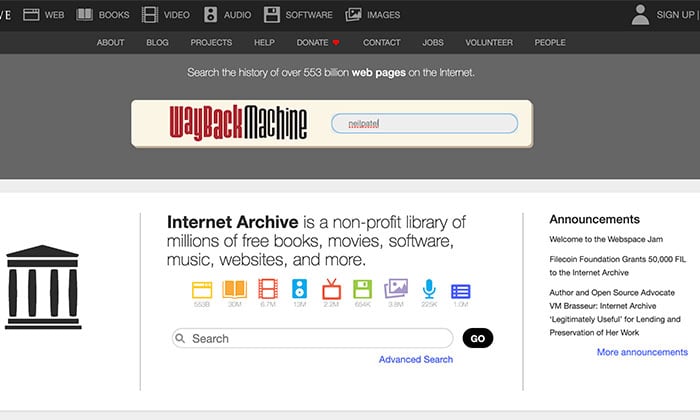
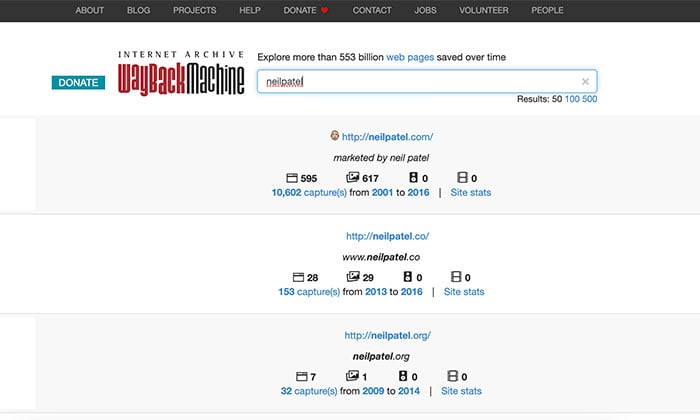
Step 2: A search results page will be loaded. Click the URL of the page you want to view.
Step 3: Use the calendar at the top of the page to see how the website looked over a period of time.
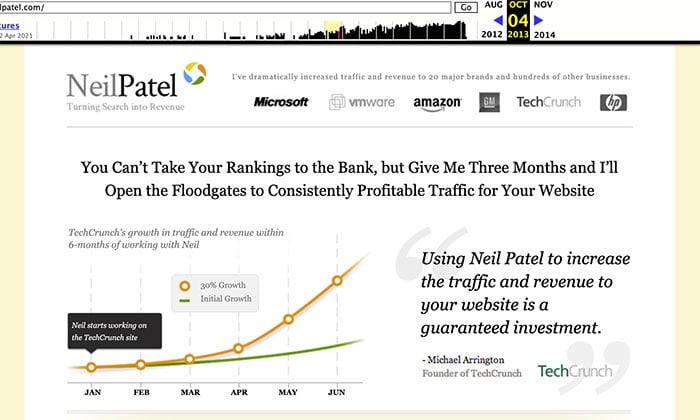
For example, if you search neilpatel.com you can see how my blog was in 2013!
Don't you want to log into the wayback machine every time you want to view a cached page? Download the Chrome Extension.
If your site is not on the Wayback machine, you can submit your URL manually. This will automatically take a snapshot for you. This is useful if you want to keep track of how your website is performing over the years.
6. Use the web cache viewer for cached pages
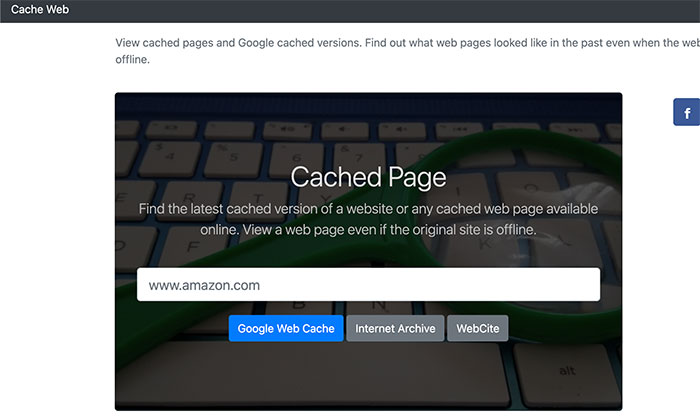
Cachedpage.co is a website that brings together some of the tools I mentioned earlier.
After entering the URL of the page you want to view, you have three options to choose from:
- Google Web Cache
- Internet archive
- website
Select the one you want and the cached page will direct you to each site.
It doesn't do any caching itself, so this site is only useful if you want to save time switching between caching tools.
Conclusion
As you can see, a web cache viewer is an essential SEO and marketing tool in your online arsenal.
This information can help you quickly find information that has been removed from the Internet, see how your website has changed over the years, and determine if Google is not indexing your website correctly.
Remember to keep intent in mind, although there are many tools available. Do you just want to see the last cached version of a page or do you need to go further back in time?
Your answer will help you find the right solution to your caching problem.
What is your favorite web cache viewer tool and how do I use it?

See How my agency can drive Firmly Amounts of traffic on your website
- SEO – Unlock tons of SEO traffic. See real results.
- Content Marketing – Our team creates epic content that is shared, links accessed and visitors drawn.
- Paid media – effective paid strategies with a clear ROI.
Book a call